eERC Transfer App
This guide explains how to use the eERC Transfer app to securely transfer eERC tokens on your Avalanche L1.
Before you begin, ensure the Privacy Module is enabled on your L1. If not, follow the setup instructions.
1. Open the eERC Transfer App
Access the eERC Transfer app from the AvaCloud Portal by clicking Open app.

2. Connect Your Wallet
After launching the app, you will be prompted to connect your wallet. Select from the available options:
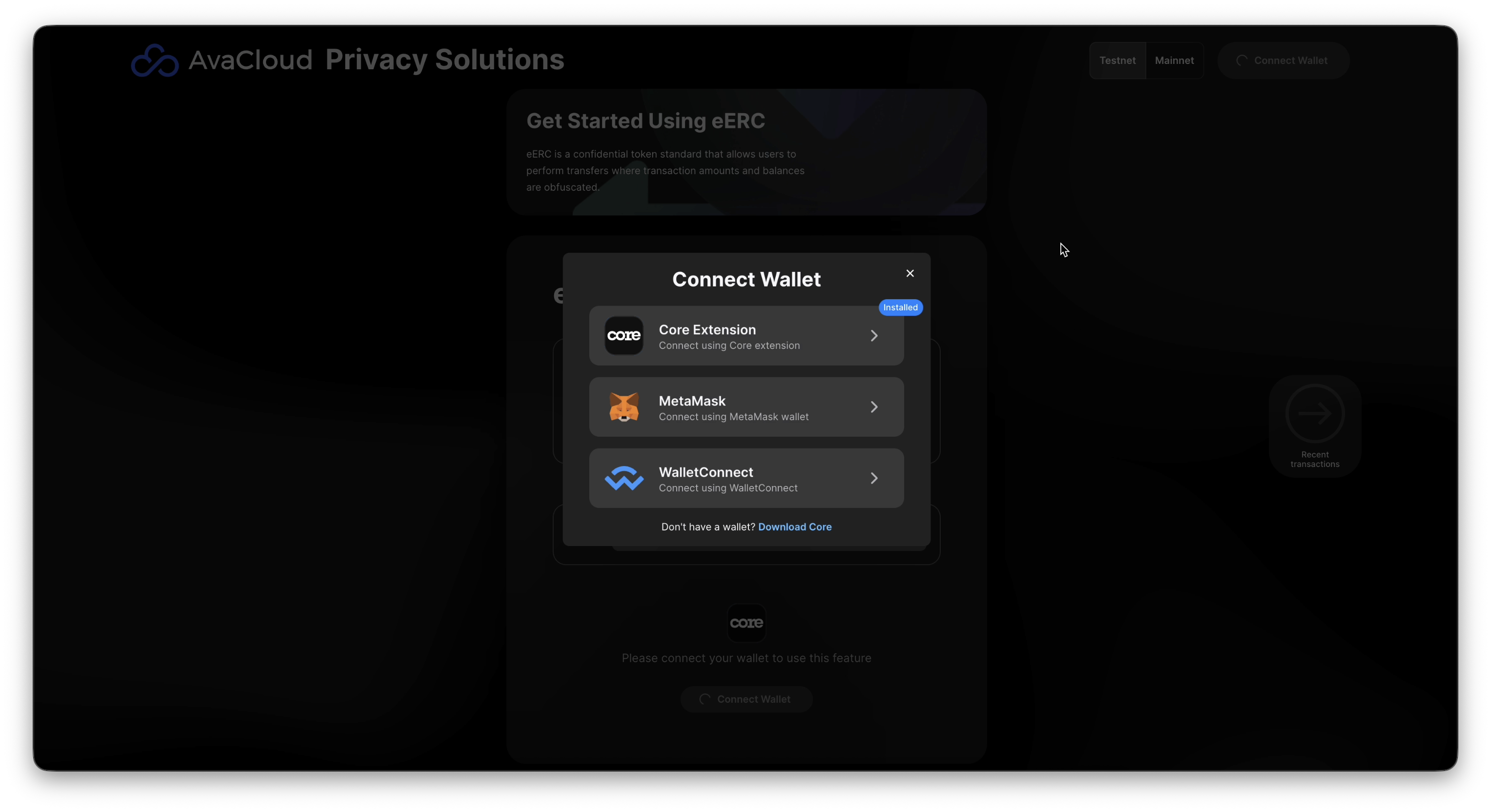
For this guide, choose Core as your wallet provider:
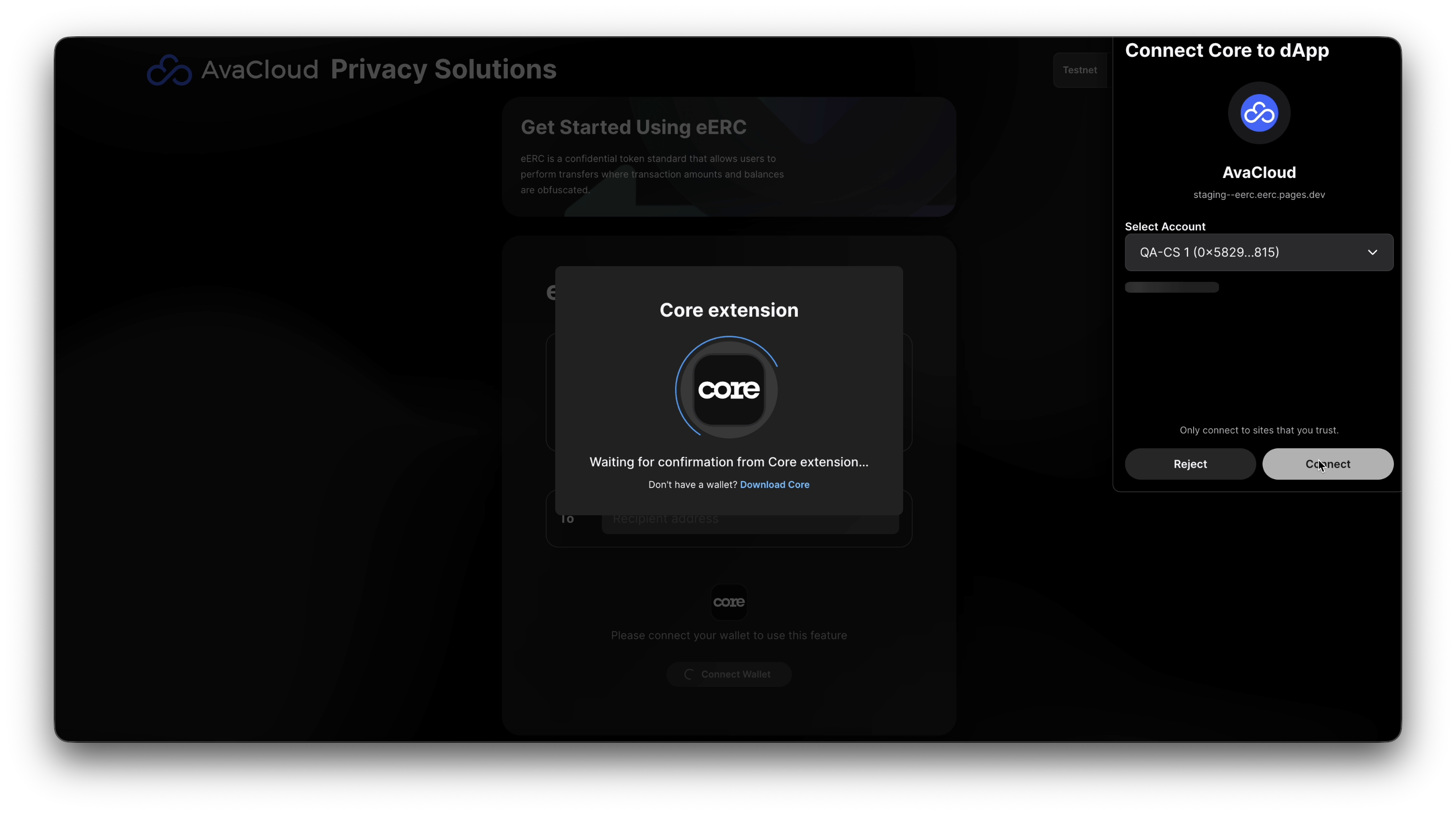
3. Generate a Key Pair
For a first-time address using the app, the Generate Key Pair button will be enabled. The generated key pair is required to enable private and secure eERC transactions.
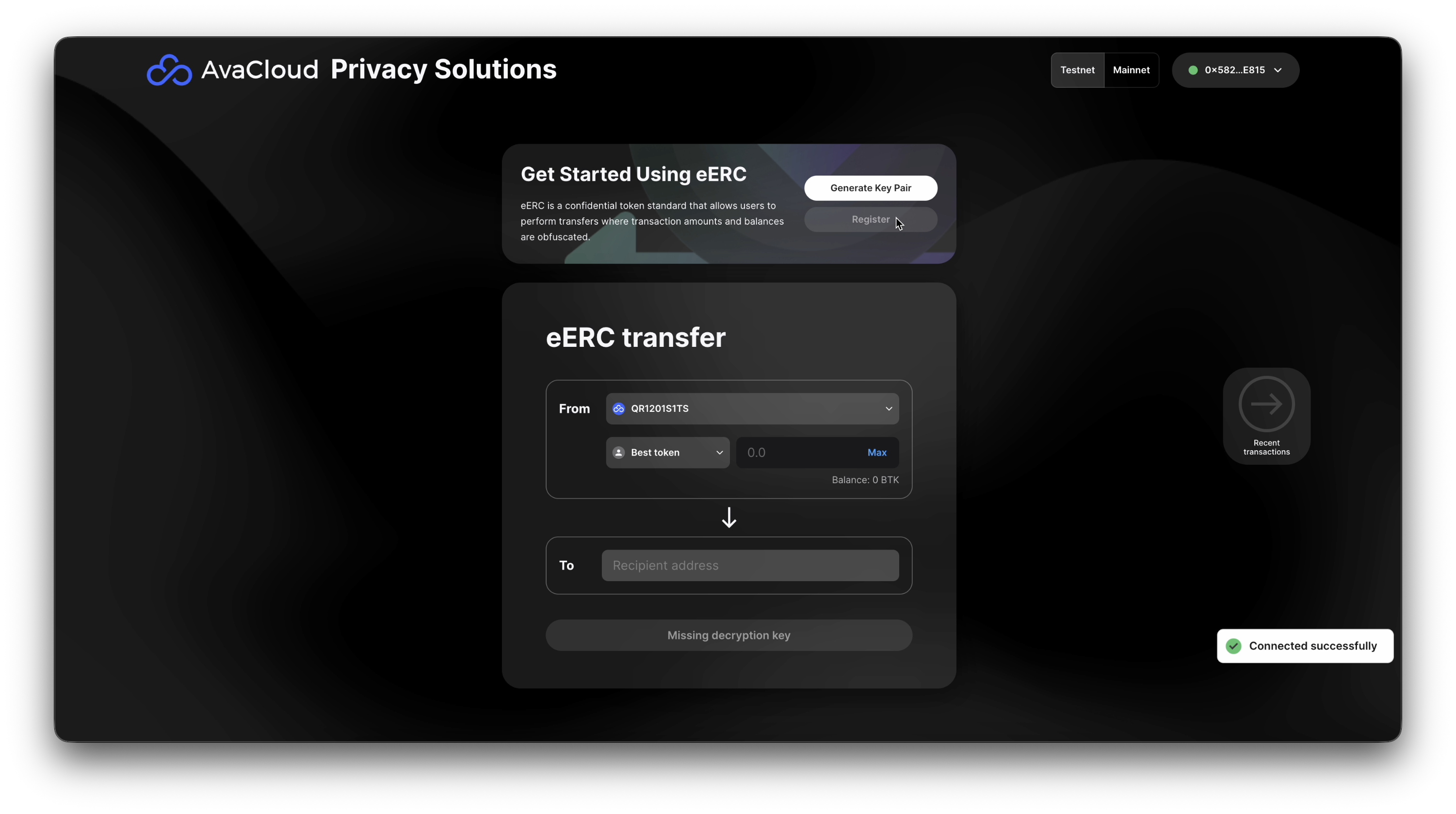
Also if the the address is not registered, the Register button will be enabled too. Click register to register the address before proceed.
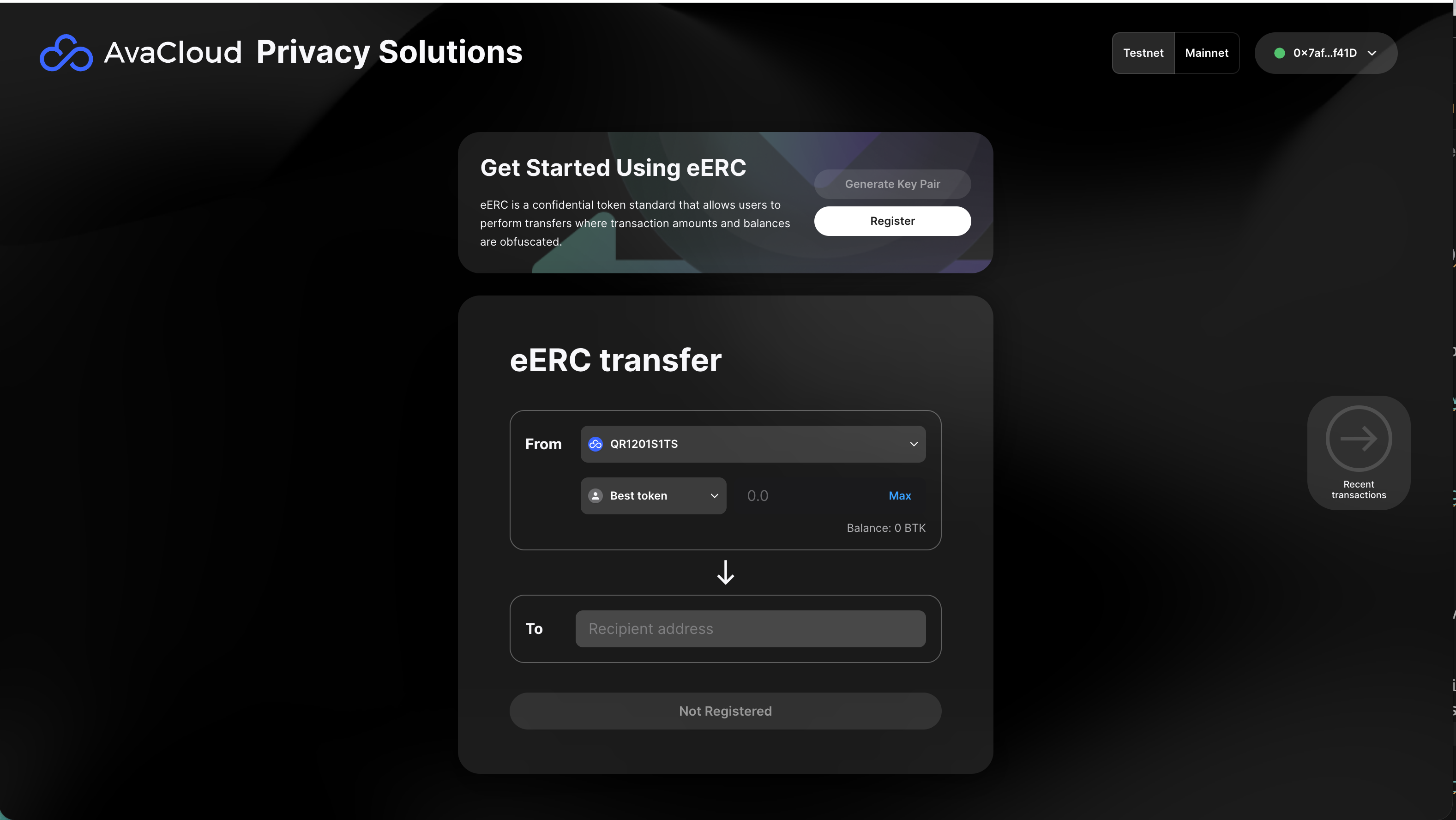
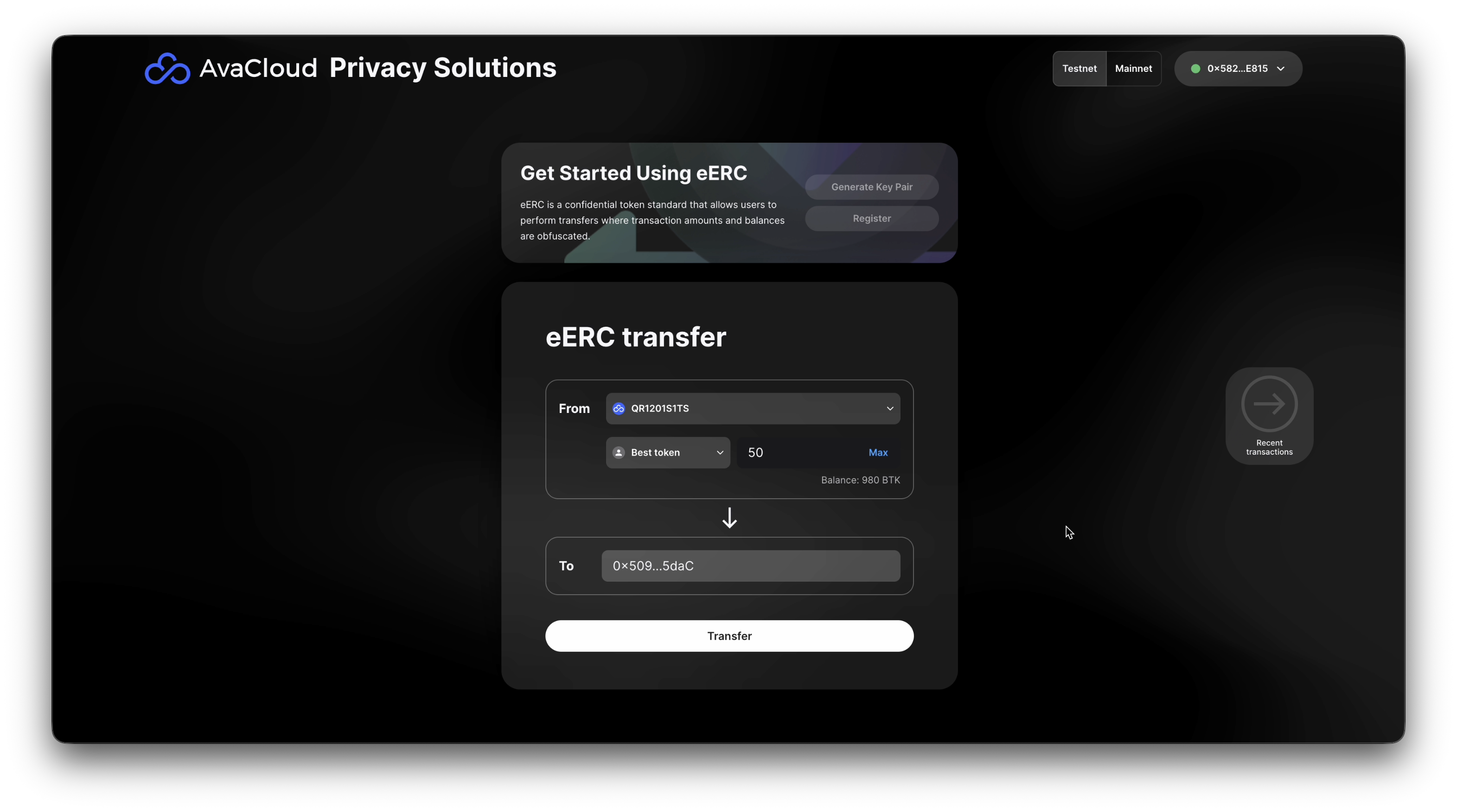
4. Initiate a Transfer
Enter the amount of eERC tokens you wish to send and the recipient’s wallet address.
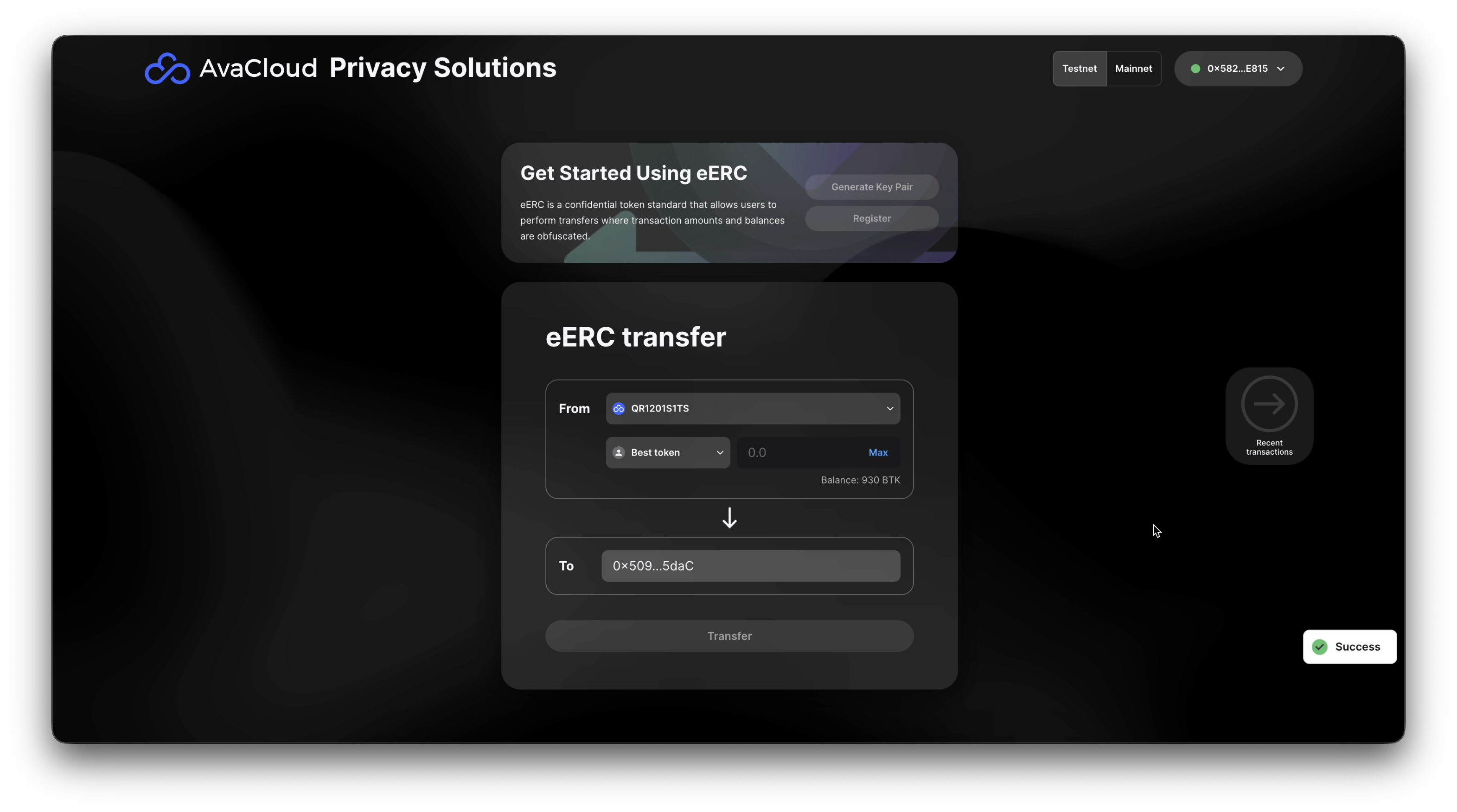
Once the transaction is submitted successfully, you should see a confirmation:
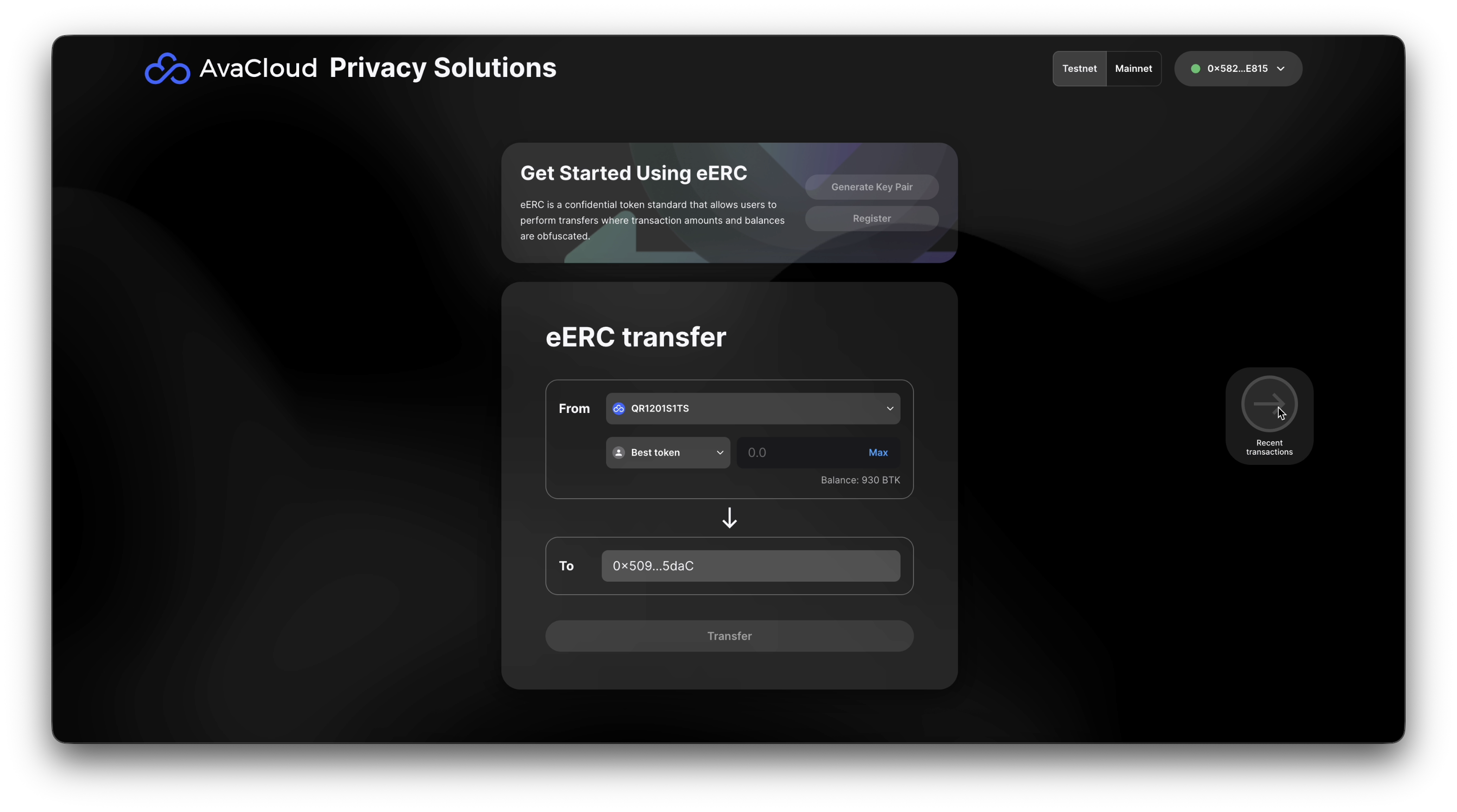
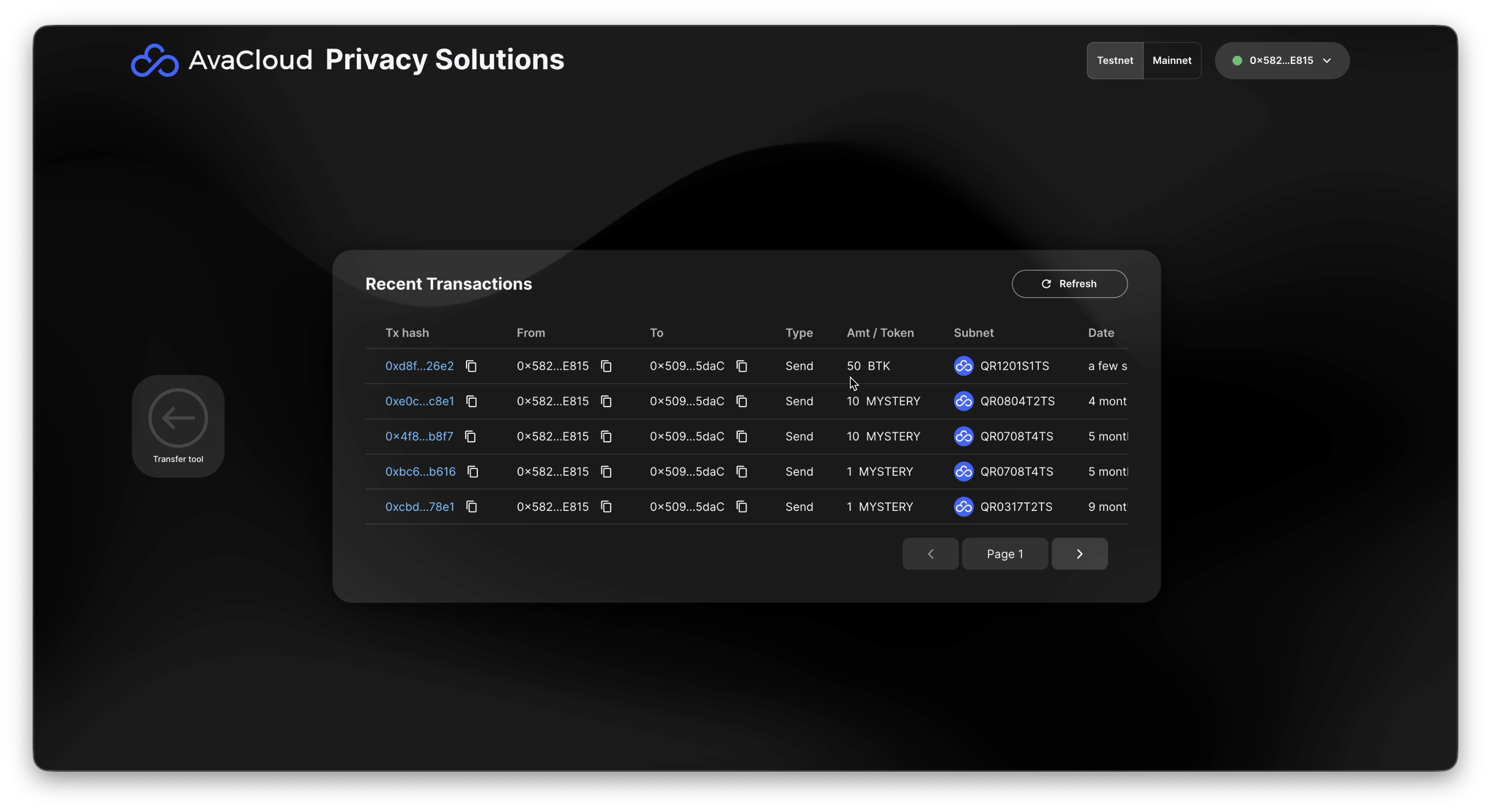
5. Review Transaction History
You can track recent transfers and monitor your account’s activity in the Transaction History section.
Video Walkthrough
If you need more help, explore our other articles or reach out to our support team via chat or email [email protected]. All examples provided are for demonstration purposes only.
Learn More About AvaCloud | Download Case Studies | Schedule an AvaCloud Demo
