Private L1
Running a private Avalanche L1 chain gives clients granular control over who can access and interact with the blockchain environment. This is particularly valuable for organizations and projects requiring confidentiality, restricted participation, or advanced security features.
Private L1 chains enforce privacy at the network and infrastructure level. This is distinct from eERC, which is a protocol for creating privacy-preserving tokens—enabling fully encrypted token transactions with compliance features like zero-knowledge proofs and auditor oversight.
Key Privacy Features
When configuring a private L1 chain, several options help achieve higher privacy and restricted access:
-
Stealth Launch: Deploy an L1 so that data synchronizes only among approved nodes and public access point such as RPC on the blockchain is not publicly listed or discoverable. This provides an additional layer of privacy during the initial deployment phase.
-
Hidden Explorer: Restrict blockchain explorer access, so only authenticated users can view transaction histories and on-chain data.
Requesting a Private L1 Chain
Private L1 is available as an add-on feature and requires a monthly subscription charge as well as a one-time setup fee.
To initiate the process of making an L1 private, please email [email protected] with the following information:
- L1 name & alias
- L1 (Subnet) ID
- Chain ID
- Explorer link
Inviting Users to Explorer Access
Only users who belong to the same organization as the L1 can gain access to a private Explorer. They must login on the Explorer website in order to access the Explore.
To add users, follow this guide.
Reverting a Private L1 to Public
Reverting a private L1 to public may require a one-time setup fee.
To revert a private L1 to public, please email [email protected], including:
- L1 name & alias
- L1 (Subnet) ID
- Chain ID
- Explorer link
Connecting a Wallet to a Private L1
When an L1 is made private, its public RPC endpoint will be disabled. To connect a wallet to a private L1, users must configure it to use the L1’s developer RPC endpoint instead.
Locate the L1’s developer RPC value in the Access Details section of the L1 in the AvaCloud Portal.
To update the RPC in Core Wallet Extension:
-
Open and log in to the Core Wallet Extension.
-
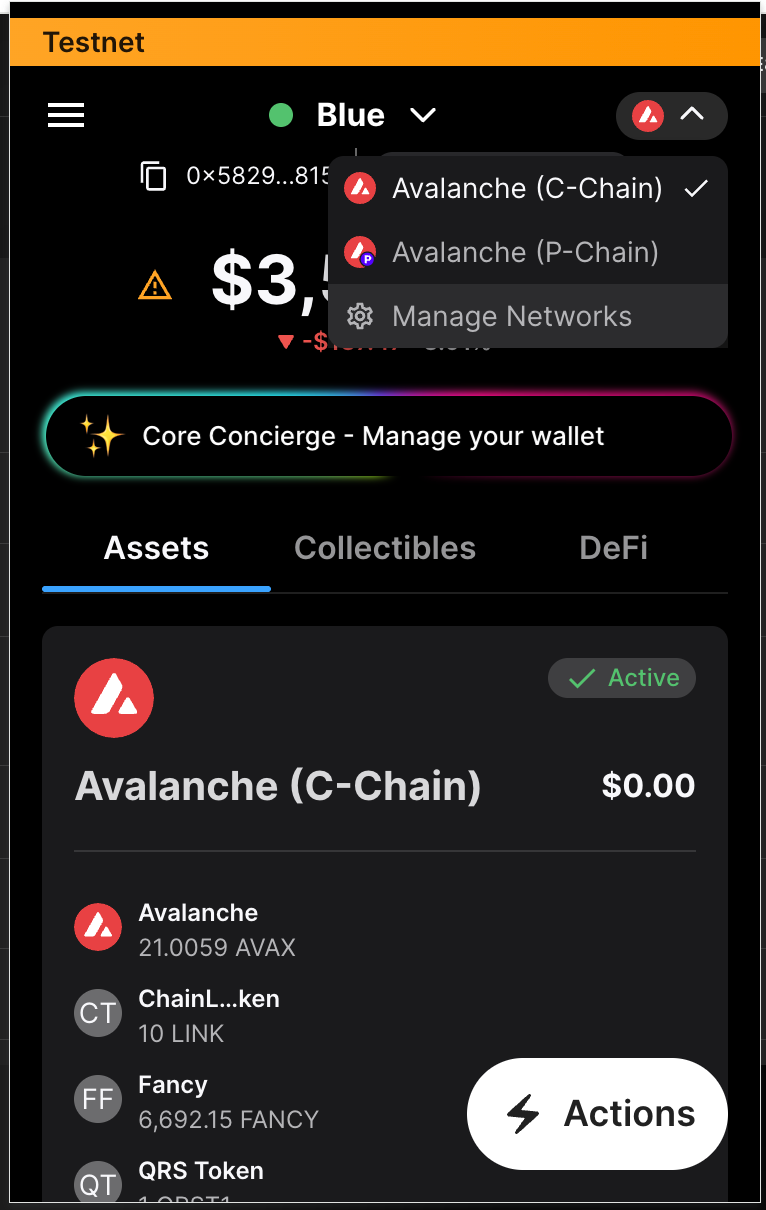
Click the network selector dropdown in the top right corner. At the bottom of the menu, select “Manage Network.”
-
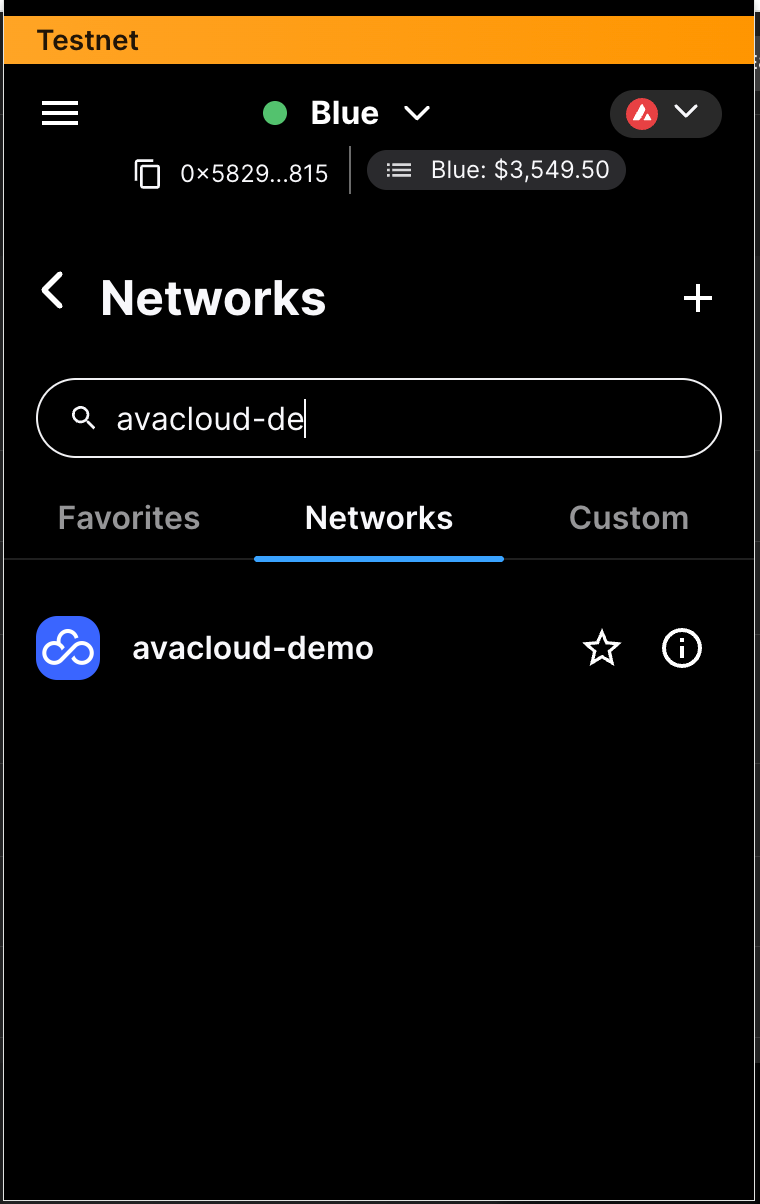
In the “Networks” tab, search for the L1’s name. On the L1, click the information “i” icon in the right:
-
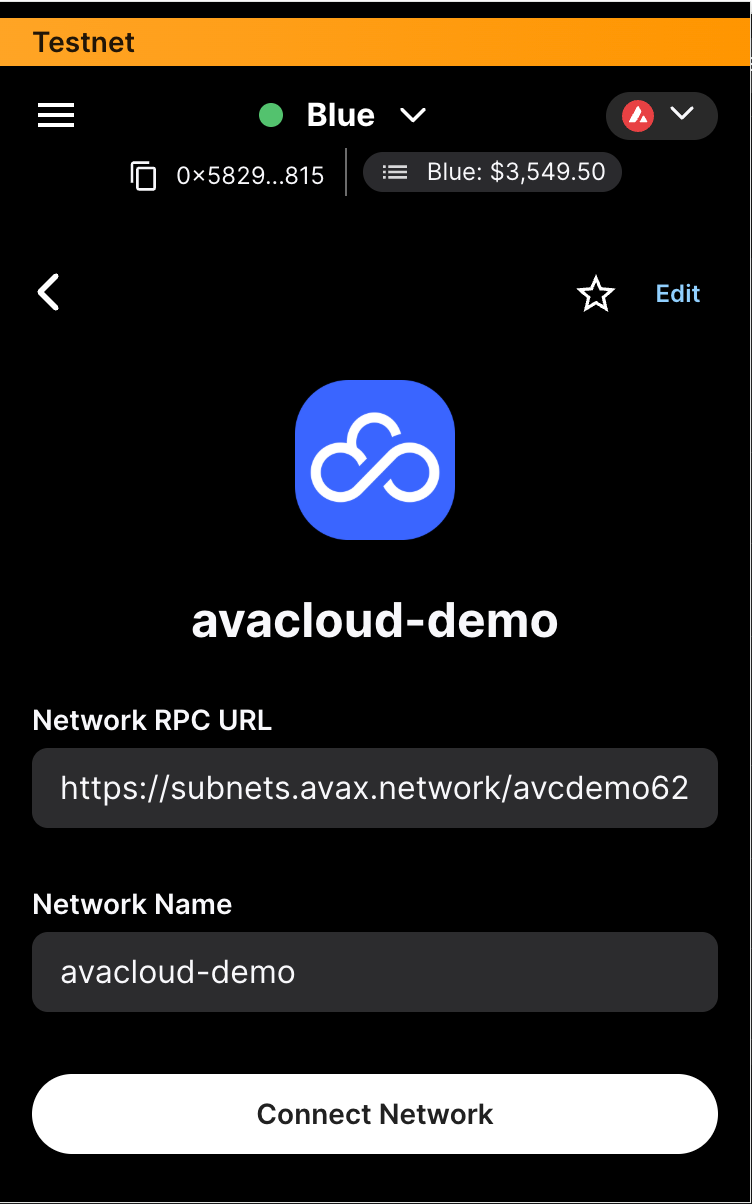
Click the “Edit” button in the top right corner.
-
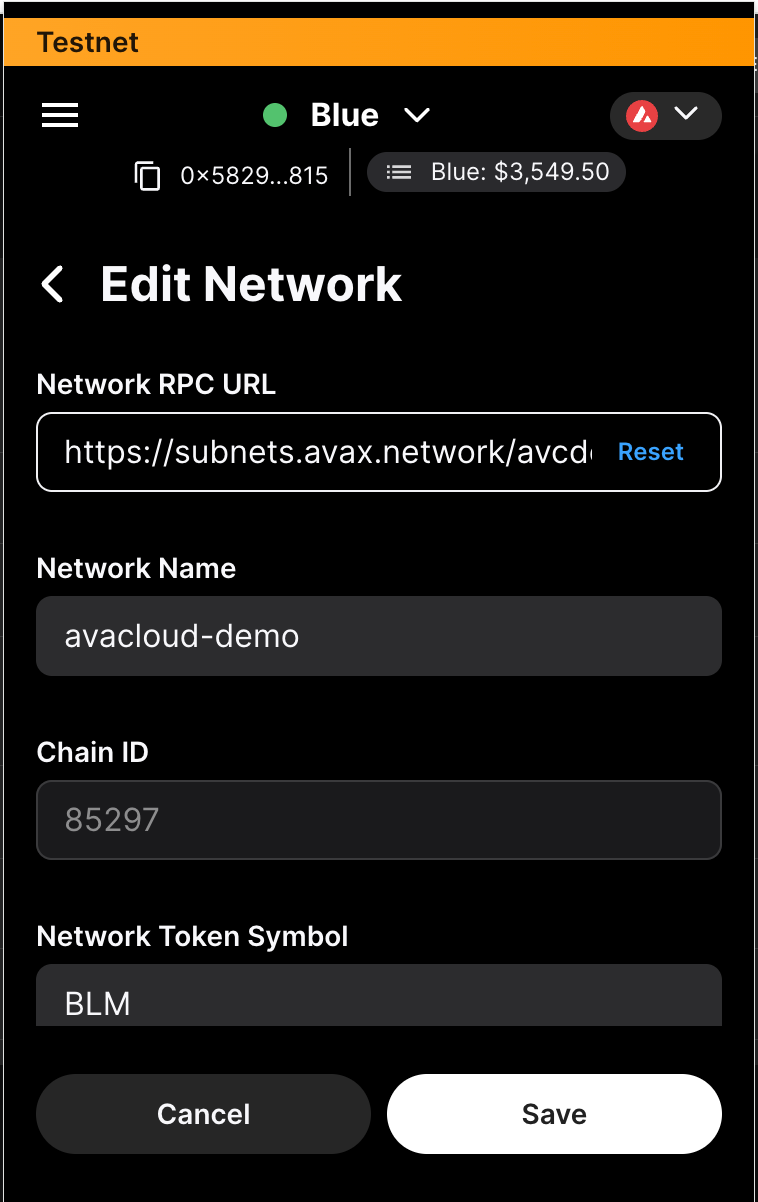
Replace the “Network RPC URL” value with the L1’s developer RPC. Click “Save” to confirm.
If you need more help, explore our other articles or reach out to our support team via chat or email [email protected]. All examples provided are for demonstration purposes only.
Learn More About AvaCloud | Download Case Studies | Schedule an AvaCloud Demo
