

How to Create an L1 With Basic Setup?
This guide walks you through deploying a new Avalanche L1 on AvaCloud using Basic Setup, which launches your L1 quickly with standard settings. The example below uses Testnet. The steps for Mainnet are nearly identical, so you can follow the same flow and select "Mainnet" in step 1.
Need more control over your configuration? See How to Create an L1 With Advanced Setup.
Prerequisites
You need an AvaCloud Portal account. (Sign up or Log in)
Step-by-Step Instructions
-
Select the Network
- In the AvaCloud Portal, click the
Deploy an L1button. - Select "Testnet" when prompted to choose a network. (Select "Mainnet" for a production deployment.)
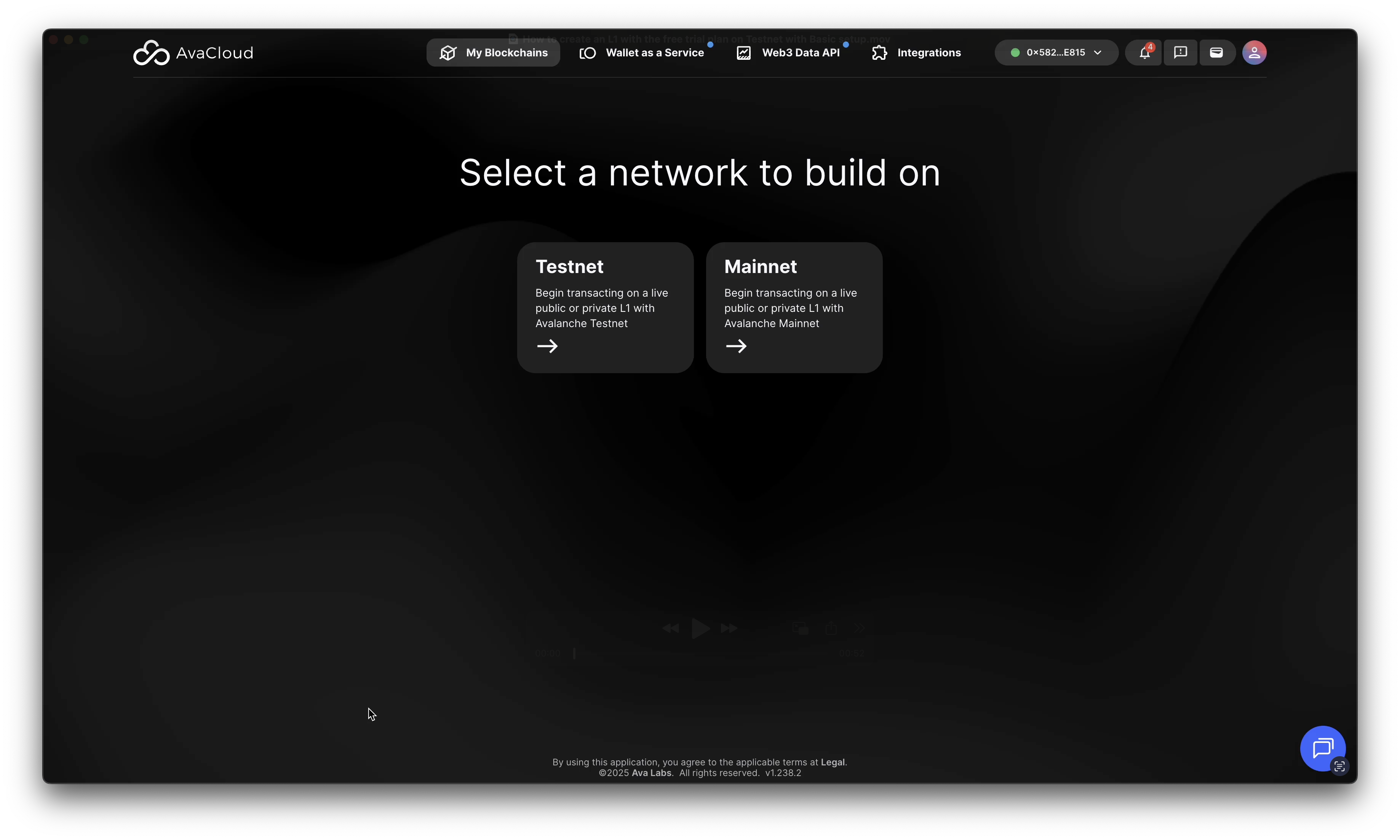
- In the AvaCloud Portal, click the
-
Choose Your Setup Type
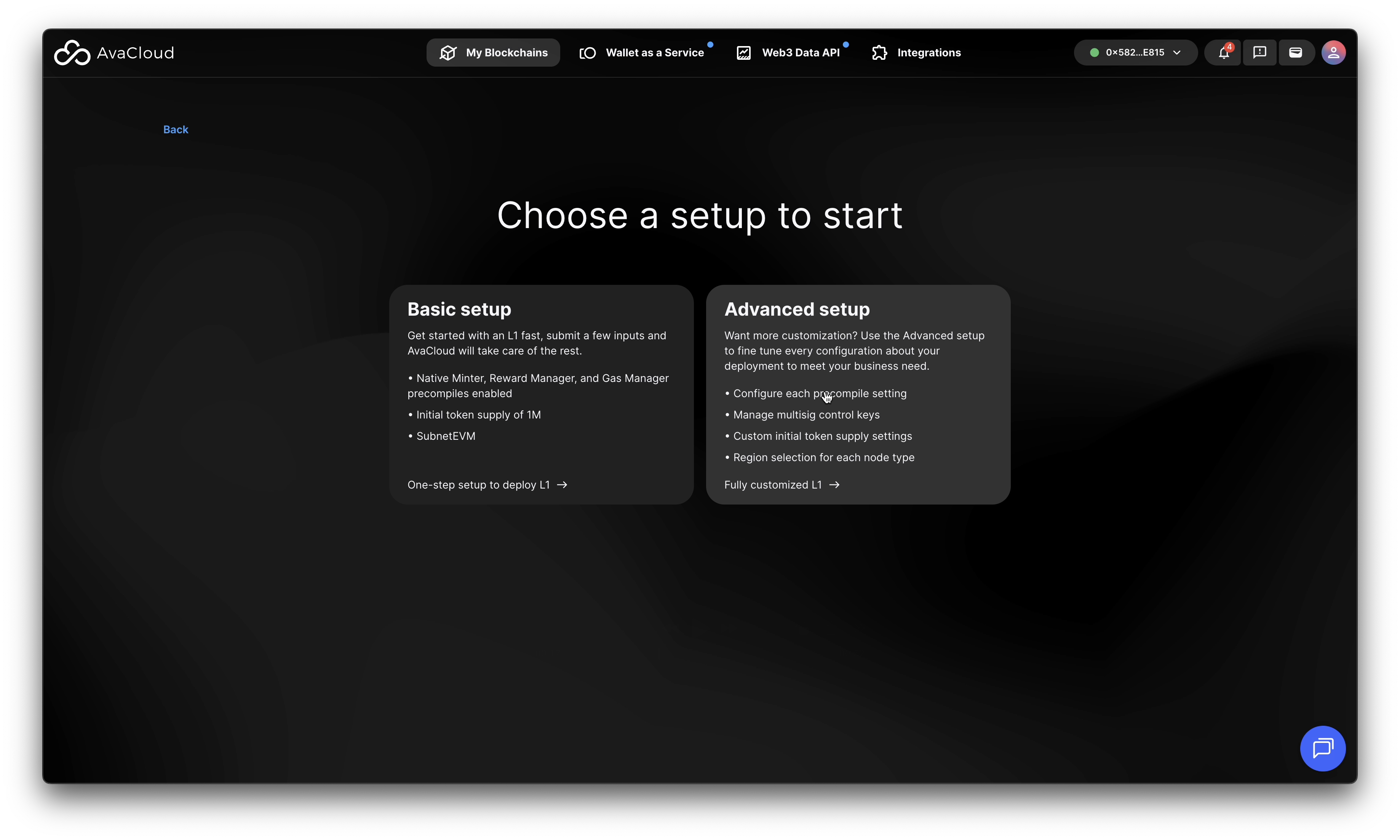
- Select Basic Setup for a quick launch using standard settings. Basic Setup enables the Native Minter, Reward Manager, and Gas Manager precompiles and uses an initial token supply of 1M.
- If you need greater customization, choose Advanced Setup instead. See How to Create an L1 With Advanced Setup.
-
Connect to the Network
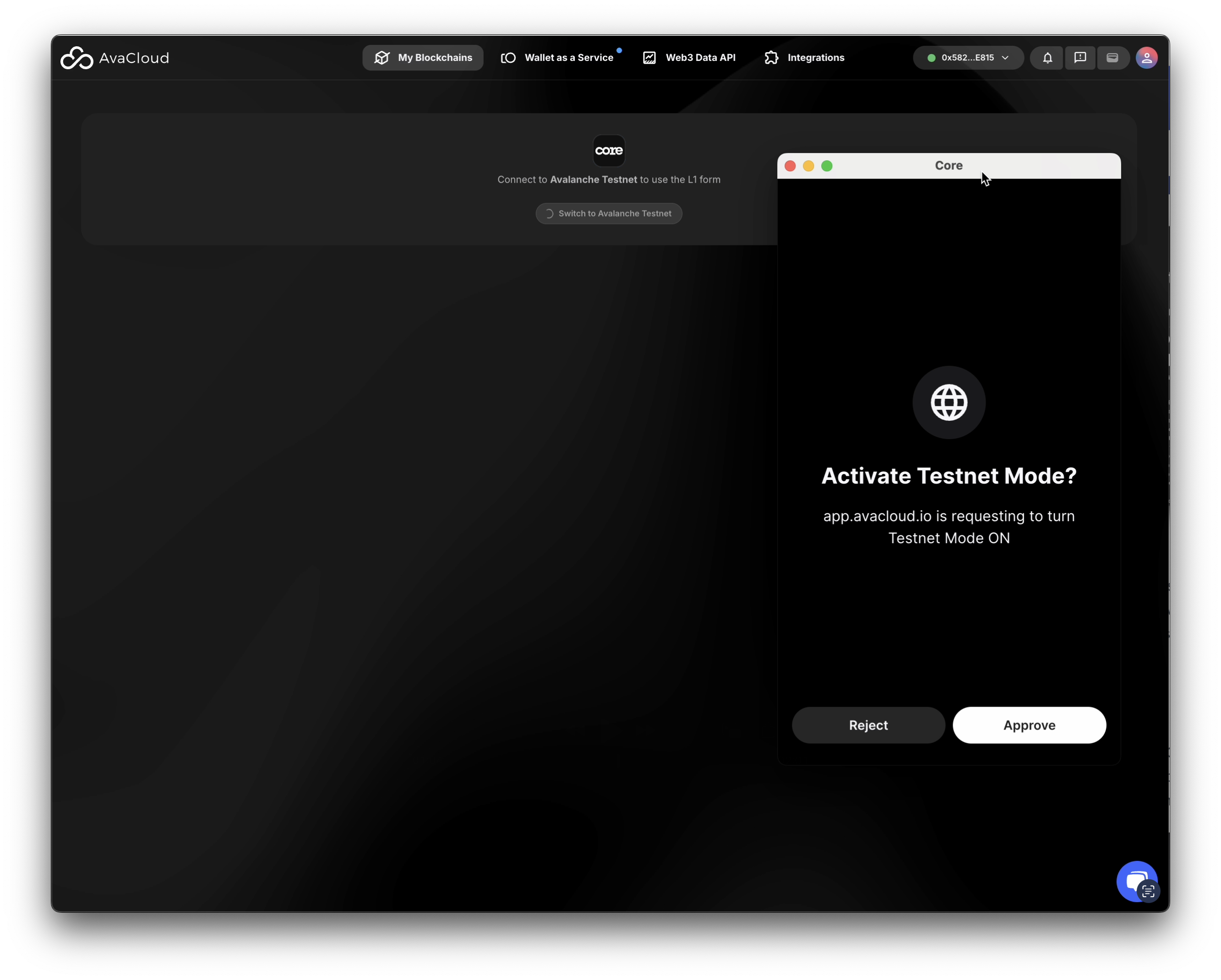
- Ensure your wallet or connection is set to the Avalanche network you selected (Testnet in this example) before continuing.
-
Enter L1 Details
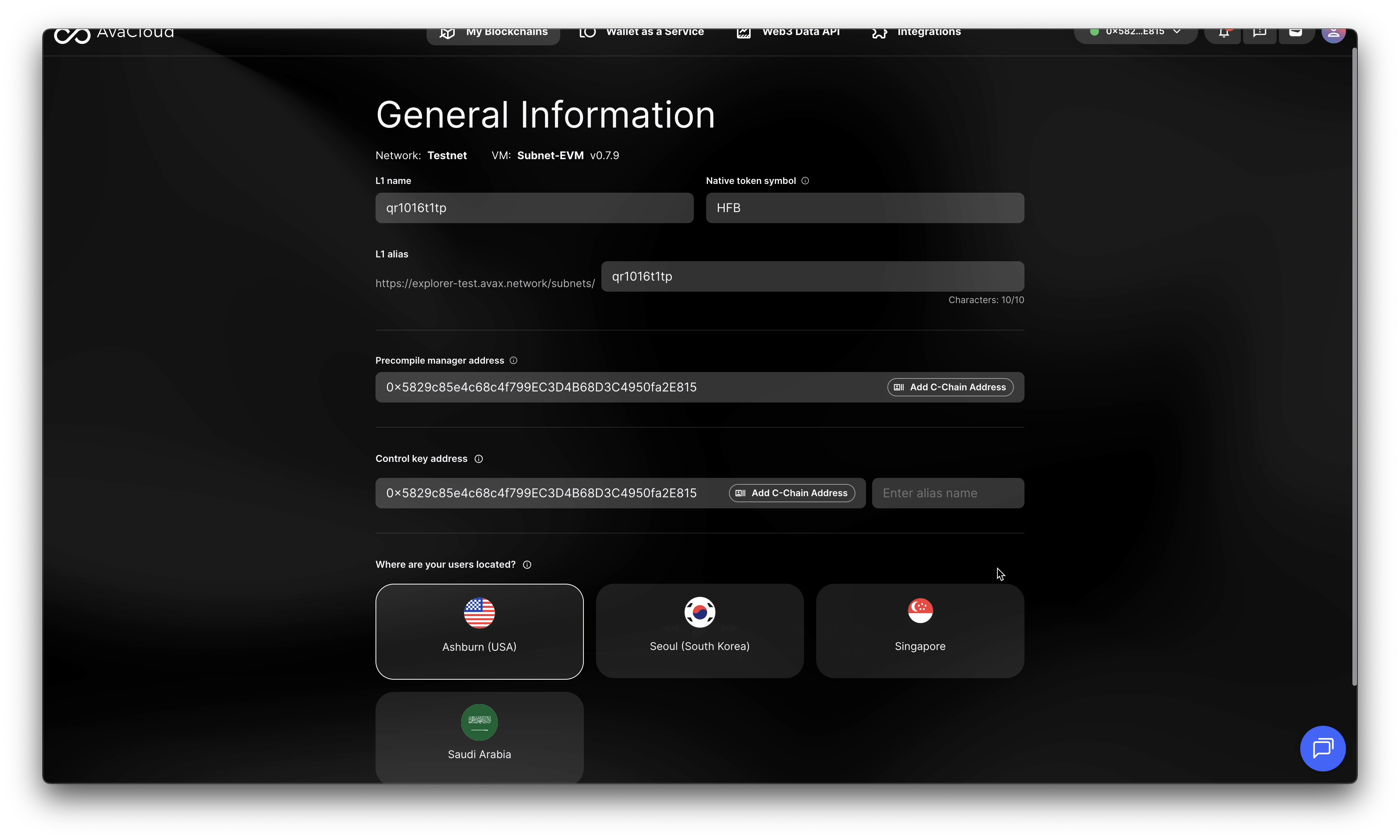
- Confirm or update the following information:
- L1 name
- Native token symbol
- L1 alias
- Precompile manager address
- Control key address and optional alias name
- User location (more options such as EU are available for Mainnet deployments)
- Confirm or update the following information:
-
Create Your L1
- Click the "Create L1" button to start the deployment process.
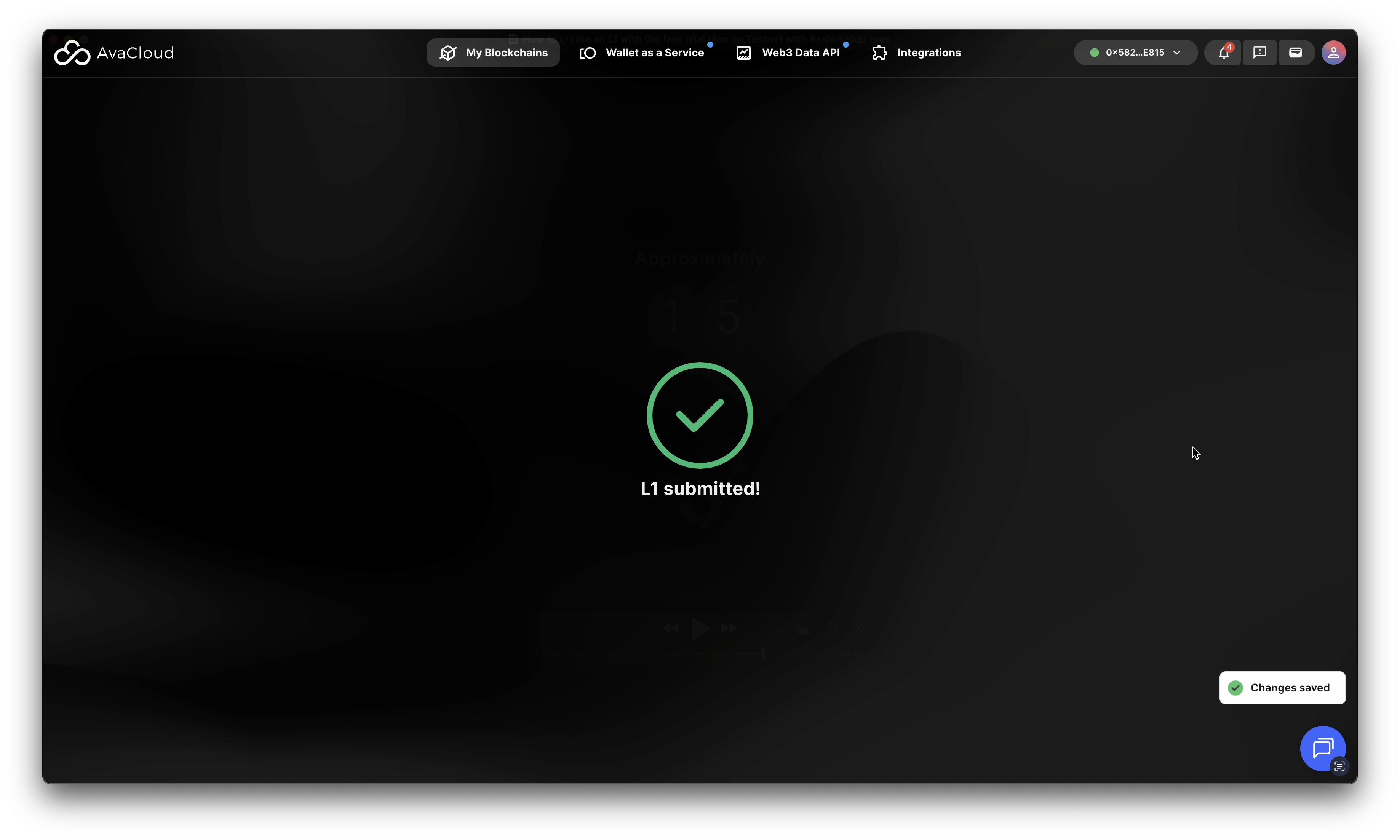
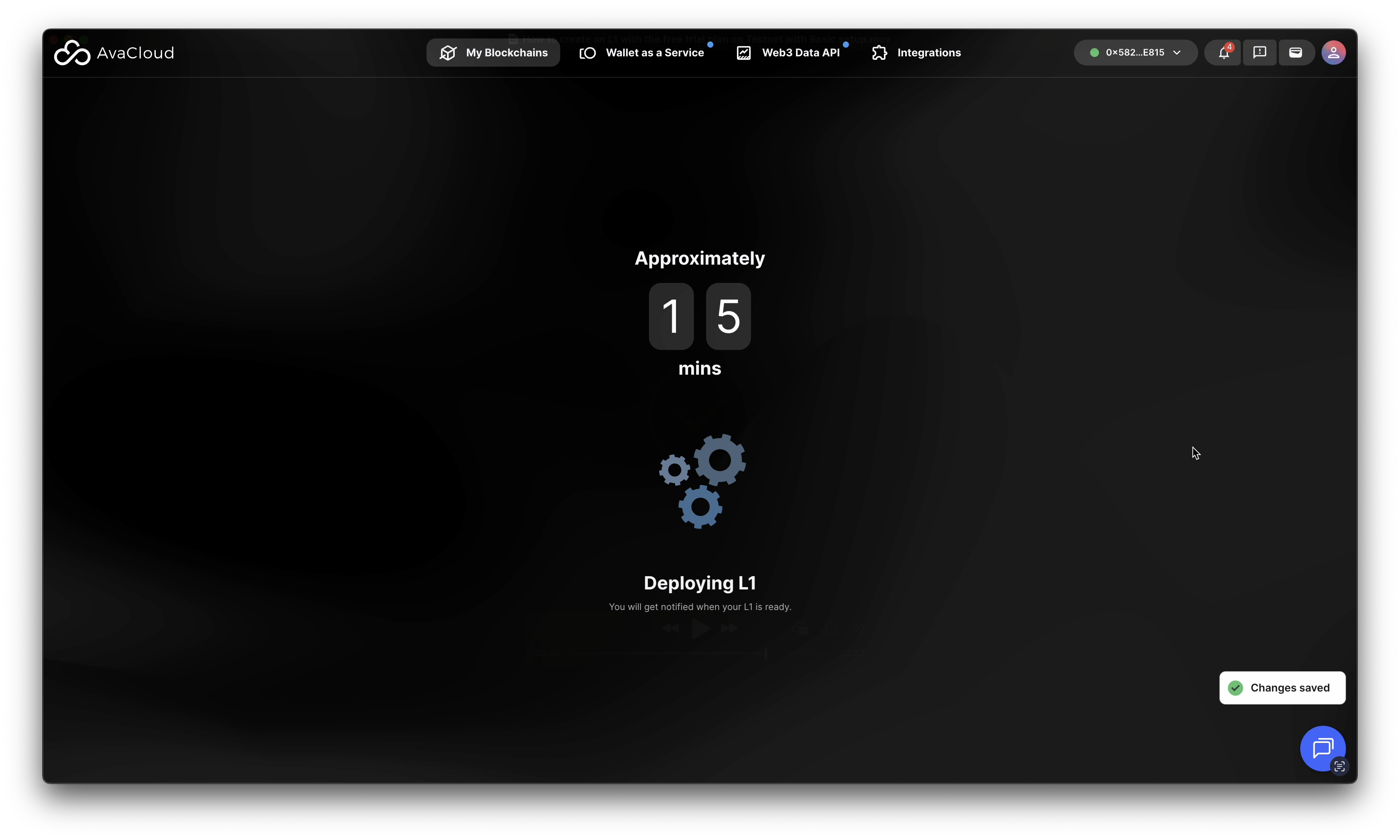
- The Portal will display progress updates as your L1 is being set up.
-
Finish and Access Your L1
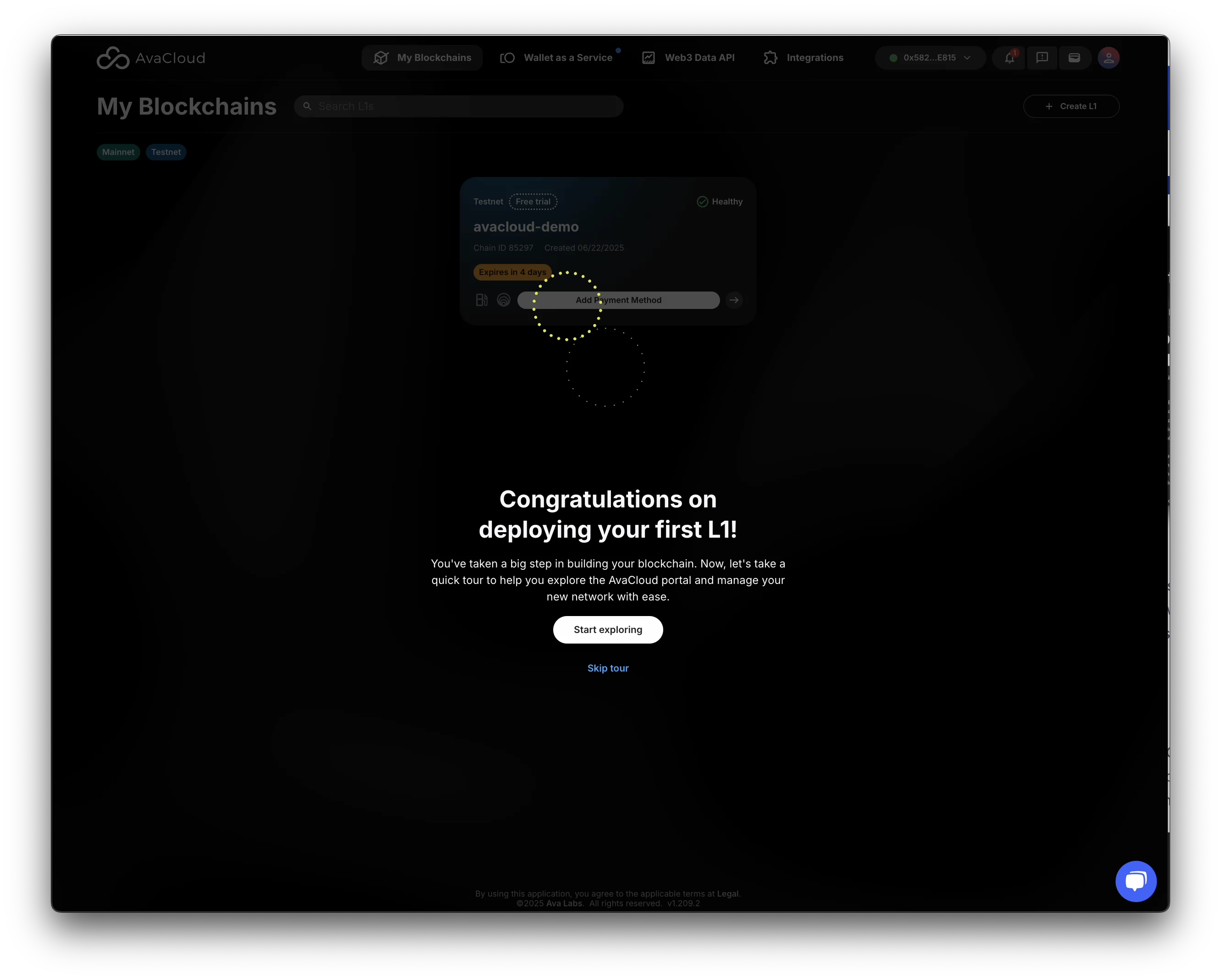
- You’ll receive an email notification when your L1 is ready.
- Return to the AvaCloud Portal to view your new L1 and manage its settings.
If you need more help, explore our other articles or reach out to our support team via chat or email support@avacloud.io. All examples provided are for demonstration purposes only.
Learn More About AvaCloud | Download Case Studies | Talk to Our Team